 Skip to content

Most PowerBuilder applications contain at least one toolbar. AscentialTest recognizes the individual tools in the toolbar, using the ‘RenderImage’ feature.
Follow these steps to define PowerBuilder Toolbar objects:
- Find the tool bar element in the Elements tree and drag it to the App Objects tree under the App Object definition for the application’s main window:

The drag will create an App Object for the toolbar but not for the individual tools.
- Right-click on the Toolbar Object that you just defined and select ‘Add Render Image’:

- The ‘Add Image’ dialog displays:

- Use your favorite snip-it tool to grab the image of the tool that you wish to define and put it on the clipboard. Try to capture as little background as possible.
- Provide a Name for the Image and Click the ‘Copy Clipboard’ button:

- Click the ‘OK’ button. The object will be defined automatically.
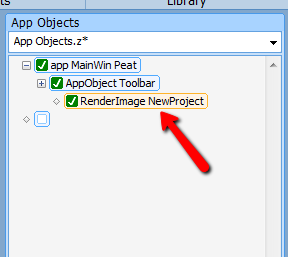
- The RenderImage based object can be used just like any other App Object in AscentialTest.
If you have any questions about defining a Toolbar Object, please contact Zeenyx Support at support@zeenyx.com. We are happy to answer your questions.


